
Credential Harvesting URLs

Credential Harvesting Finding Final POST Location
Credential harvesting is the act of a malicious actor attempting to trick a user into entering their login account information along with their password. This will provide the malicious actor with the credentials to be able to login to the user’s account. This could lead to the malicious actor having access to the user’s email account, and could lead to the malicious actor having access to documents saved to a network location. This could potentially lead to the malicious actor gaining more sensitive information, such as the victim’s financial information or social security number information.
Most credential harvesting attempts are sent via email phishing attempts. This could come from spoofed email addresses or from another compromised email account that the victim trusts. The phishing emails may contain an attachment or a link to a file in the email.
When analyzing any type of phishing email it is advised to not do it on a production system, but to analyze the attachments in a lab environment or through online analysis systems such as Anyrun.
In some cases, the initial domain that a user goes to is not always the same domain that the credentials are posted to.
This document is intended to be used as a reference to be able to quickly identify where credentials are being sent to in the requests.
Credential Harvesting Code
In most situations, the code that is being provided is obfuscated and difficult to quickly determine its intent. Attempting to deobfuscate to a human-readable code is not realistic to be able to quickly put in the necessary security defenses, such as putting a network block for the credential harvesting domains and URLs.
In the following instructions, we will use a real-world attempt at an HTML file that was sent to an intended victim. If the victim followed through and entered their credential information, their account would have been compromised.
Encoded Email Addresses
In some cases of credential harvesting, within the body of the attachment or in the link that is sent to the user, is the intended victim's email address, which is base64 encoded. Before interacting with the URL, in a lab environment or anyrun, it is recommended to see if there are some base64 encoded values. This way, if the malicious actor is logging the information, the email address is not sent to the actor.

Figure 1-Obfuscated script in HTML file
In Figure 1 above, see that the JavaScript is obfuscated and difficult to understand what is occurring. We do see that there are some variables in the code. The variable 1 contains a base64 encoded value. Converting that from base64 using a tool such as CyberChef reveals the email address.

Figure 2-Email address decoded using CyberChef
Replacing the base64 encoded value with a generic email address helps to keep sensitive information from being inadvertently shared.
Using Browser Developer Tools
To be able to get the indicators of compromise (IOCs) of the malicious domains and URLs, we can use a browser’s developer tools. The use of these tools is similar between Chrome, Edge, and Firefox. In this scenario, we use Firefox to get the final credential harvesting URL.
Before opening the malicious file or visiting the link in the email, we need to bring up Developer Tools in the browser. In our scenario for the HTML file we will do this before opening the HTML file within the browser. If it is a link in an email, we can copy and paste the link in the browser after the following steps have been completed.
Steps to capture URLs
1. In Firefox, go to Settings > More Tools > Web Developer Tools, to bring up the tools that will be needed.
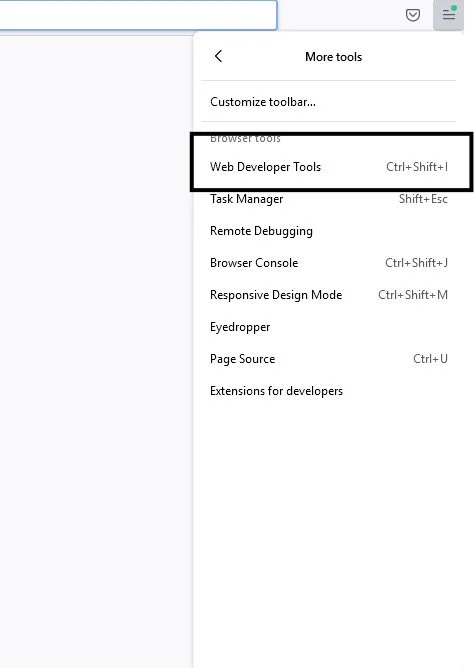
Figure 3-Web Developer Tools
2. Under the debugger tab, deactivate the debugger, by clicking on the highlighted button. Scrolling your mouse over the blue button and it will say de-activate breakpoints. If already de-activated it will say activate breakpoint. In Figure 4, the breakpoints have already been de-activated. This is the blue sideways triangle that has a line drawn through. The reason for this is some malicious sites will check to see if a debugger is detected in the code.
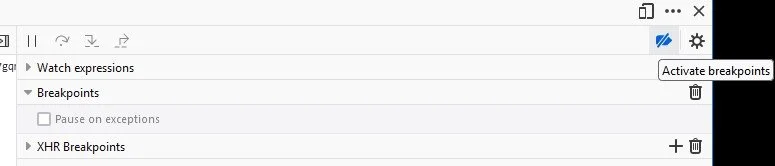
Figure 4- Deactivate debugger
3. Click on the Network tab and make the logs persistent. This will keep the network logs from being erased if they are moved to a new URL. In Firefox, click on the cog wheel in the right-hand corner of developer tools and then check “Persist Logs.”

Figure 5-Persistent Network Logs
Interact with the HTML File
At this point, if you have a URL that was in a document or link from an email, you can copy this link into the browser. If it is an actual HTML attachment, open that file in the browser tab with developer tools.
After opening the file or visiting the link, a login box often appears asking us to enter our email address. Interesting enough, this example brought up the login page for Microsoft. That is because it read the domain of the email address, for this example hotmail.com. If we used gmail.com as the domain, it would have brought up a Gmail login screen. This type of customization is not always the case, but is commonly seen with many credential harvesters.
After entering in incorrect password information because we entered information for a fake account with incorrect credentials. It provided back that the password is incorrect.
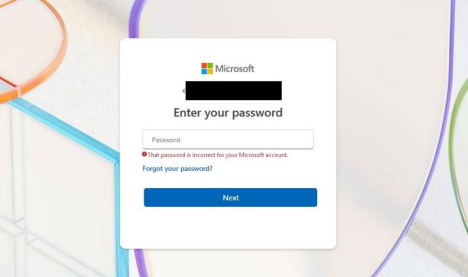
Figure 6- Login box
Looking at the network tab, we can see the activity that occurred. It first went to a malicious domain of propsnpr[.]sa[.]com with a GET request. Later, see that it did a POST, to a php file. In most cases, the POST will be sent to a php file.
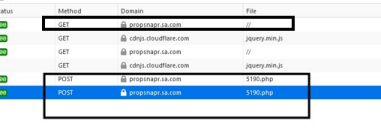
Figure 7-GET & POST attempts
In this scenario, the request to the malicious domain and where the credentials are sent to the same domain. This is not always the case, which is why doing these few extra steps can be beneficial.
Summary
In gathering the information of where the credentials are sent to, we can use developer tools to quickly identify the final URL in most cases. Care is needed to identify the intended victim information that is sent to the malicious actor. Developer Tools, including the Network tab, can be used to identify where the credentials are being POSTED to.
